How can I update or cancel my order?Updated 11 hours ago
We get it. Sometimes you hit checkout and immediately think “wait.” If your order is eligible, you can make changes yourself in just a few clicks for 30 minutes after you place it. Orders with promotions or discounts applied may not be eligible. After the 30 minute window, or not seeing an edit option? See Can I change or cancel my order after the 30 minute window or if I can’t edit it online?
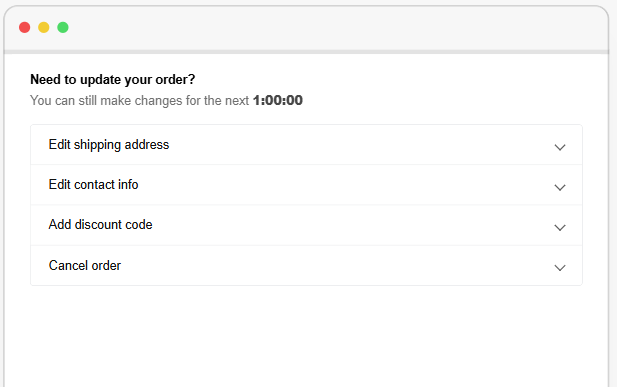
What you be changed on eligible orders
- Shipping address
- Contact info (phone number and email)
- Add a qualifying discount code
- Cancel your order

Where to find it
Right after checkout, look at the top of your order confirmation page. You'll see "Need to update your order?" with a countdown, so you always know how much time you've got.
Good to know
- Changes can affect your total, taxes, or shipping. Don't worry, you'll see the new total before you confirm anything.
- Order edits work on product orders. Gift cards are final sale and processed right away, so they can't be edited or canceled.
- Once the timer runs out, self service edits close. Still need a change? See "What if my edit time has passed?" below.
Edit your order yourself
First, open your order (lost the page? See "Get back to your order" below) and check the countdown. Then pick what you want to change.
Change your shipping address
- Under "Need to update your order?", click Edit shipping address.
- Enter your new address.
- Review the details and click Update address.
Seeing an error that your province and postal code don't match? Give both a quick double check. The Update address button stays greyed out until they line up.
If taxes are different at your new address
If your new address is in a province with a different tax rate, you'll see "Taxes are different at your new address." To make the change:
- Check out again to place a new order with updated taxes.
- Once payment is confirmed, your original order is canceled and refunded.
- You'll get a new order confirmation.
Changed your mind? Click Keep original order and you're all set. You can also cancel and rebook in full.
Update your contact info
- Click Edit contact info.
- Update your phone number or email and save.
Add a discount code
- Click Add discount code.
- Enter your code and apply it.
Heads up: it's one discount code per order, and codes can't be combined.
If your order drops below the free shipping minimum for your region, shipping will be added to your new total. You will see this before you save. Free shipping minimums vary by country and rewards membership: see the Canada or US shipping article. There's no separate refund to wait on. When your order ships, you're only charged the updated total.
Cancel your order
- Click Cancel order.
- Follow the prompts to confirm.
Good news: you haven't been charged yet. At checkout we only place a hold on your card, and it usually disappears within 3 to 5 business days, depending on your bank.
Get back to your order
Closed the confirmation page? No problem. You can still get back to your order while the timer's running.
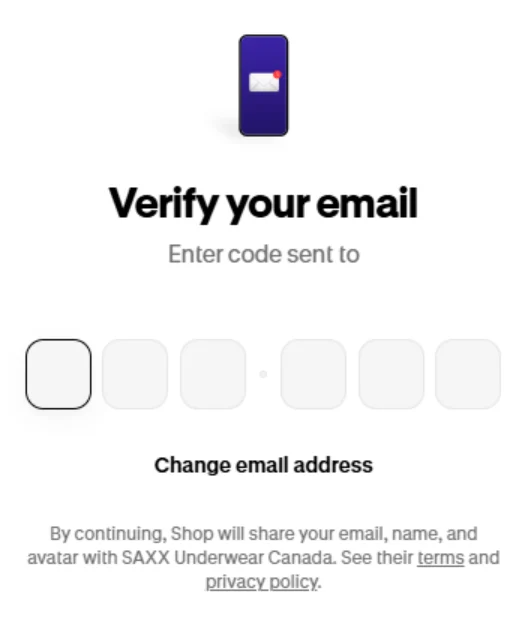
- Go to Account on SAXX website
- Enter the email you used at checkout and continue.
- Check your email for a 6-digit security code from [email protected], and enter it.
- Click Orders, then click your order.
- Make your changes, or cancel and rebook, before the timer ends.

- Make your changes, or cancel and rebook, before the timer ends.
What if my edit time has passed?
Self service edits are open for 30 minutes after you place your order. Missed it?
As we aim to ship your order as quickly as possible, we regret that it usually isn't possible for us to handle change or cancel requests once an order has been submitted. Please ensure that you have verified your order details prior to submission, especially the billing and shipping address.
If you have entered the wrong shipping address on your order, once you have received your shipping confirmation email, you may reach out to the courier with your tracking number and request an address edit.
The responsibility is with the customer to locate the package.